Start where you are.
Bring a sentence, a reference image or a more developed brief. Set the audience, mood, genre and the film you want to make.
Small Bridges · Your AI Director
A conversation that becomes a film.
Bring an idea, a script or a reference image. Develop the story, direct the shots and shape the sound with a creative partner that keeps the plan in view.
Film unavailable. The still image is shown.
From the first direction
Talk to Bridges Agent in plain language. The conversation and the film workspace sit together, so you can see what changes as the idea develops.
Current UI · Example workspace
Bring a sentence, a reference image or a more developed brief. Set the audience, mood, genre and the film you want to make.
Build scenes, revise dialogue, choose a look and ask the crew to develop coverage, effects, sound and the edit plan.
Review the production plan, available engine and quote. Approve paid production when you are ready, then follow the work in the production board.
The creative capabilities
Start with the story. Add the departments when you need more detail. You can keep revising the direction before you approve a render.
Develop the logline, scene list, action and dialogue. Ask for a stronger opening, a different turn or a quieter ending. The screenplay gives each scene a job in the story and keeps the draft visible beside the conversation.
Bring character images and reusable references into the project. Establish appearance and roles, then carry those references into eligible generation paths. References guide consistency; generated faces, clothing and details can still vary.
Define the location, palette, lighting, mood and overall look. Use your Worlds and reference library to keep the setting close to the brief. The Production Designer develops the visual direction around the story.
Ask the Cinematographer for scene coverage: wide shots, close-ups, over-the-shoulder views, point-of-view shots and inserts. Specify camera movement, timing and the reason behind a shot, with render-ready descriptions on the board.
Plan physical effects within a generated shot or use supported effects in the edit. Explore transformations, atmosphere and fourth-wall experiments through the available tools. Each effect depends on the chosen generation path or editor recipe.
Develop a cue sheet for music, sound effects, narration and dialogue. Describe the mood and instrumentation, place a sting or plan a continuous bed. Generated audio and lip-sync depend on the selected engine and production support.
Plan shot order, cuts, fades, dissolves and pacing. Continue in the timeline editor to work with clips, audio, text and effects, refine the sequence and prepare the finished export.
The Critic reviews the plan and can send notes back to the departments. Inspect findings, selected engines, production status and output as work moves forward. Resolve blocking checks and review the quote before authorising paid production.
Your crew: Screenwriter · Production Designer · Cinematographer · Effects · Assembly · Sound Designer · The Critic
Picture the sequence
Rain on the pavement. A city opening up. The first light of day. Frames from our existing Night to Dawn generation test.
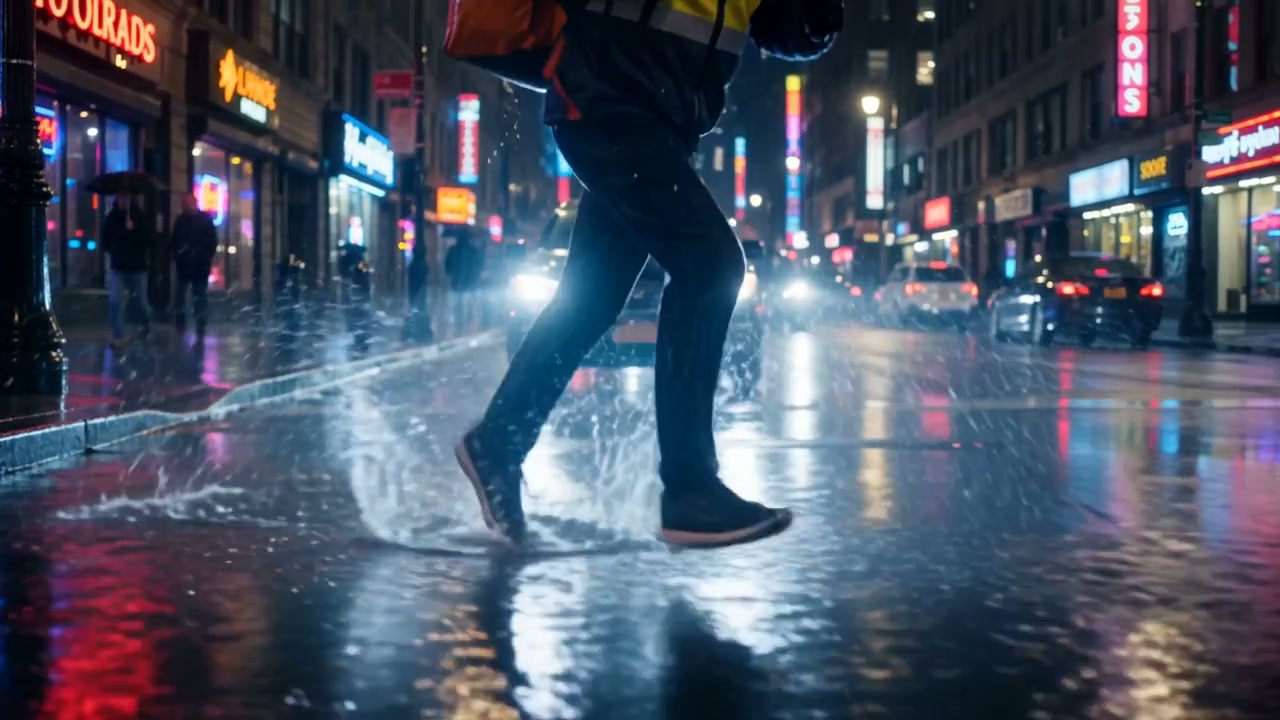
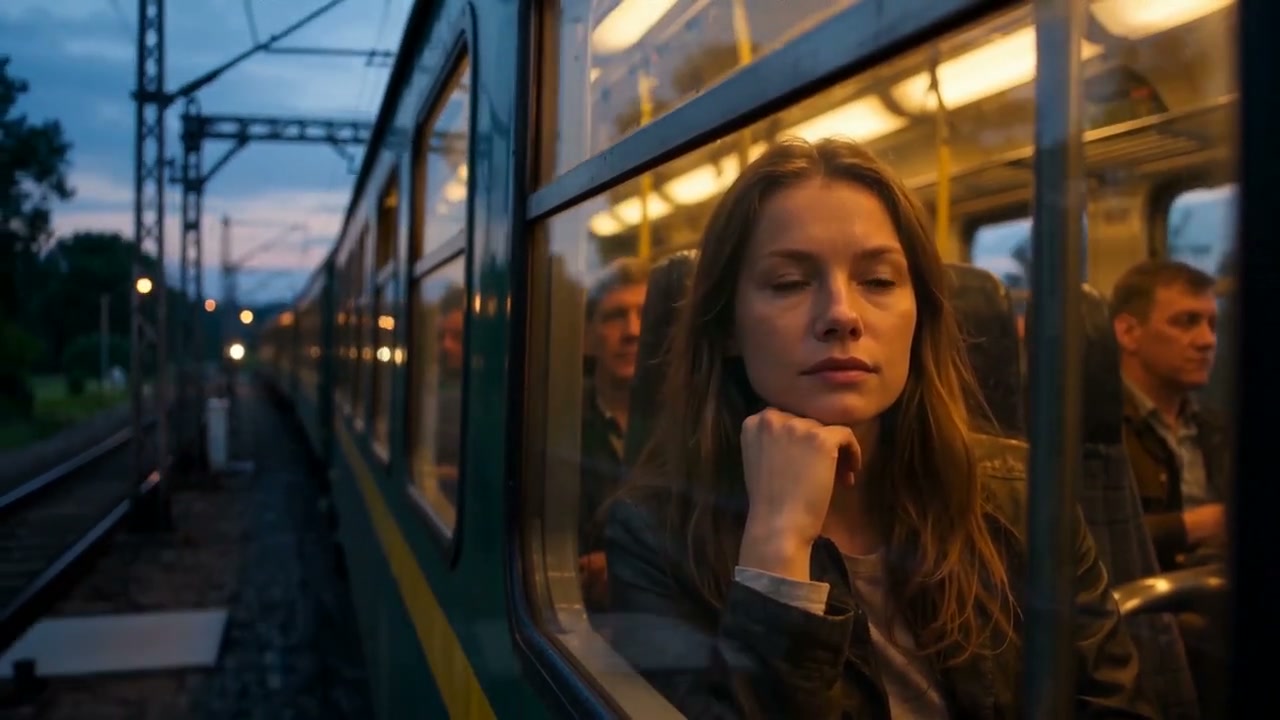
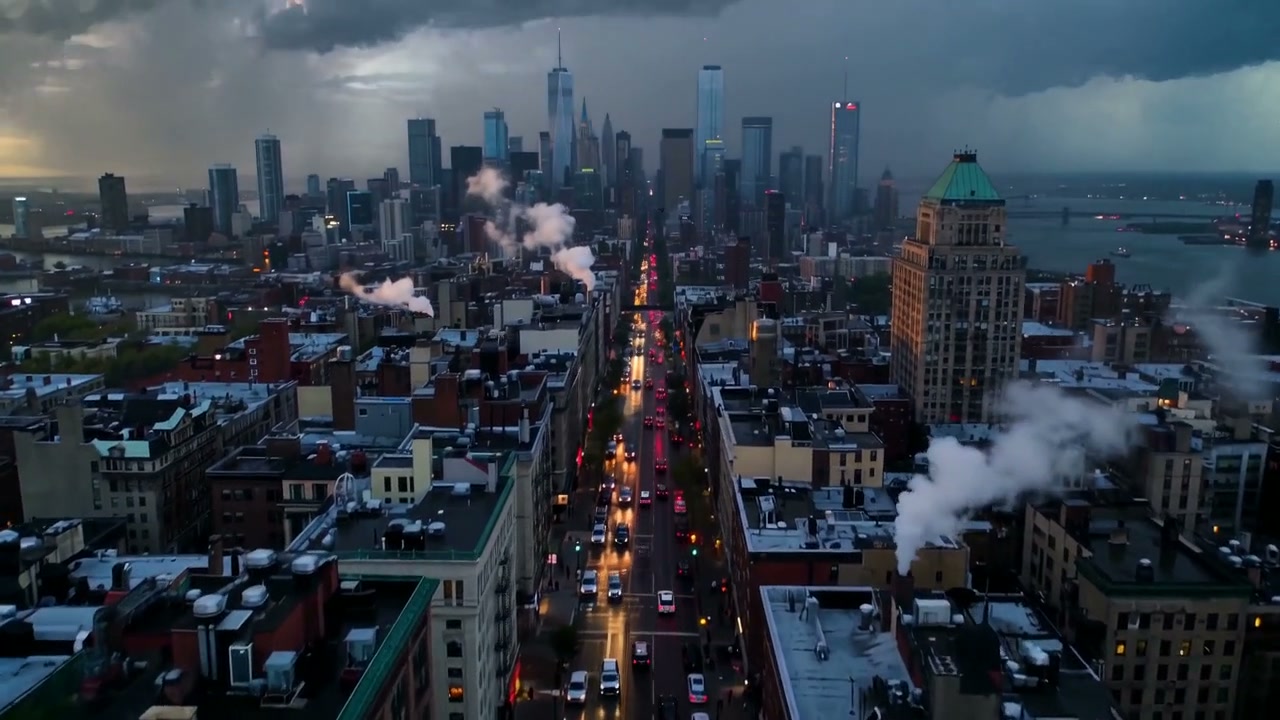
Experiments from the studio
Existing generated tests show two approaches to breaking the frame: a conductor stepping out of a performance, and an animated character moving beyond the feed.
These are fourth-wall effect studies with simulated social layouts. They show creative examples, not the Small Bridges product interface.
Explore visual effects ↗Film unavailable. The still image is shown.
Film unavailable. The still image is shown.
Keep shaping the result
Move from the generation to the editor. Work with the timeline, arrange your picture and sound, add text and effects, then export the result.
Current UI · Example workspace
Before the first take
Yes. Bridges Agent is the creative partner at the centre of the Small Bridges AI Director experience. It helps develop the brief and film plan, with specialist crew departments and connected production tools.
No. Developing the plan and approving production are separate steps. Agent and crew conversations can use credits; a paid video production requires its own review and approval. Check the current plan and quote for the work you choose.
You can develop a scene list and plan coverage across the film. Individual generation lengths, formats and audio support depend on the selected engine. Multi-scene work brings those pieces into a sequence rather than promising one unlimited generation.
Use reference images to guide eligible generations, and bring footage and audio into the editor. Cast and world references help establish direction; they do not guarantee identical details in every generated shot.
Review the available engine, production choices and exact quote before approving paid production. Availability depends on your plan and the selected route. You can also inspect the work and refine the final sequence in the editor.